
Create your first site with the Builder
What this does
The HumanDesign.AI Builder turns a plain-language description of your practice into a complete, on-brand website. You describe what you offer and the look you want, and the Builder plans the pages, writes the site, and wires in a live chart calculator, paid reports, bookings, and AI chat that all run on your real HDAI account.
Before you start
- You need a HumanDesign.AI Pro account. The Builder signs you in with the same login.
- You need some build balance. Each build draws from your HDAI usage balance, so top up first if you are low. You can do this any time at your Usage page.
Step by step
-
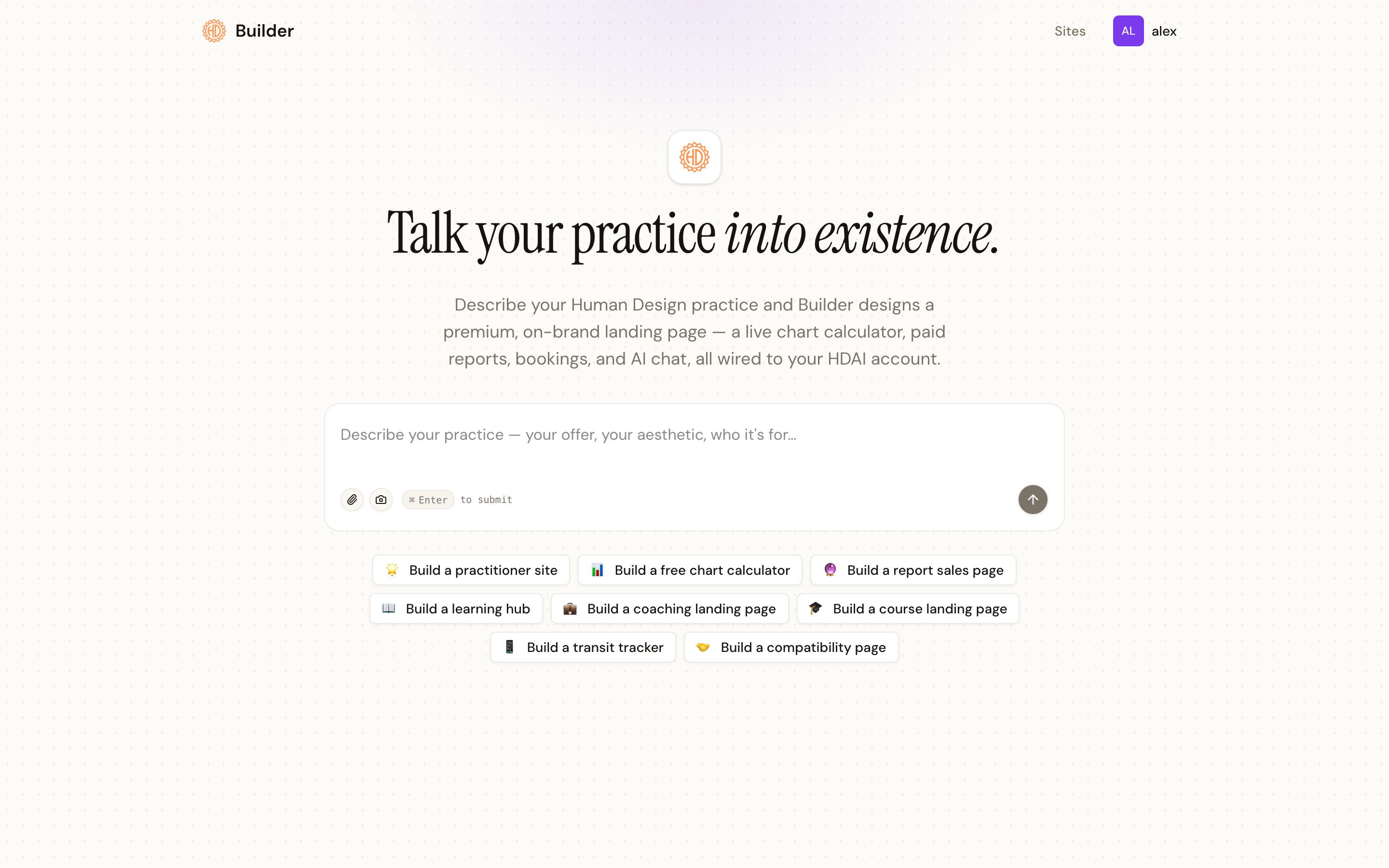
Open the Builder and describe your practice. On the home screen you will see a single prompt that reads “Talk your practice into existence.” Type a few sentences about your offer, your aesthetic, and who it is for. The more specific you are about your readings, your prices, and your colours, the closer the first draft lands.
-
Or start from a template. Below the prompt are starter templates for the most common Human Design sites: a full practitioner site, a free chart calculator, a report sales page, a learning hub, coaching and course landing pages, a transit tracker, and a compatibility page. Click one to drop a ready-made description into the prompt, then edit it to match your practice.
-
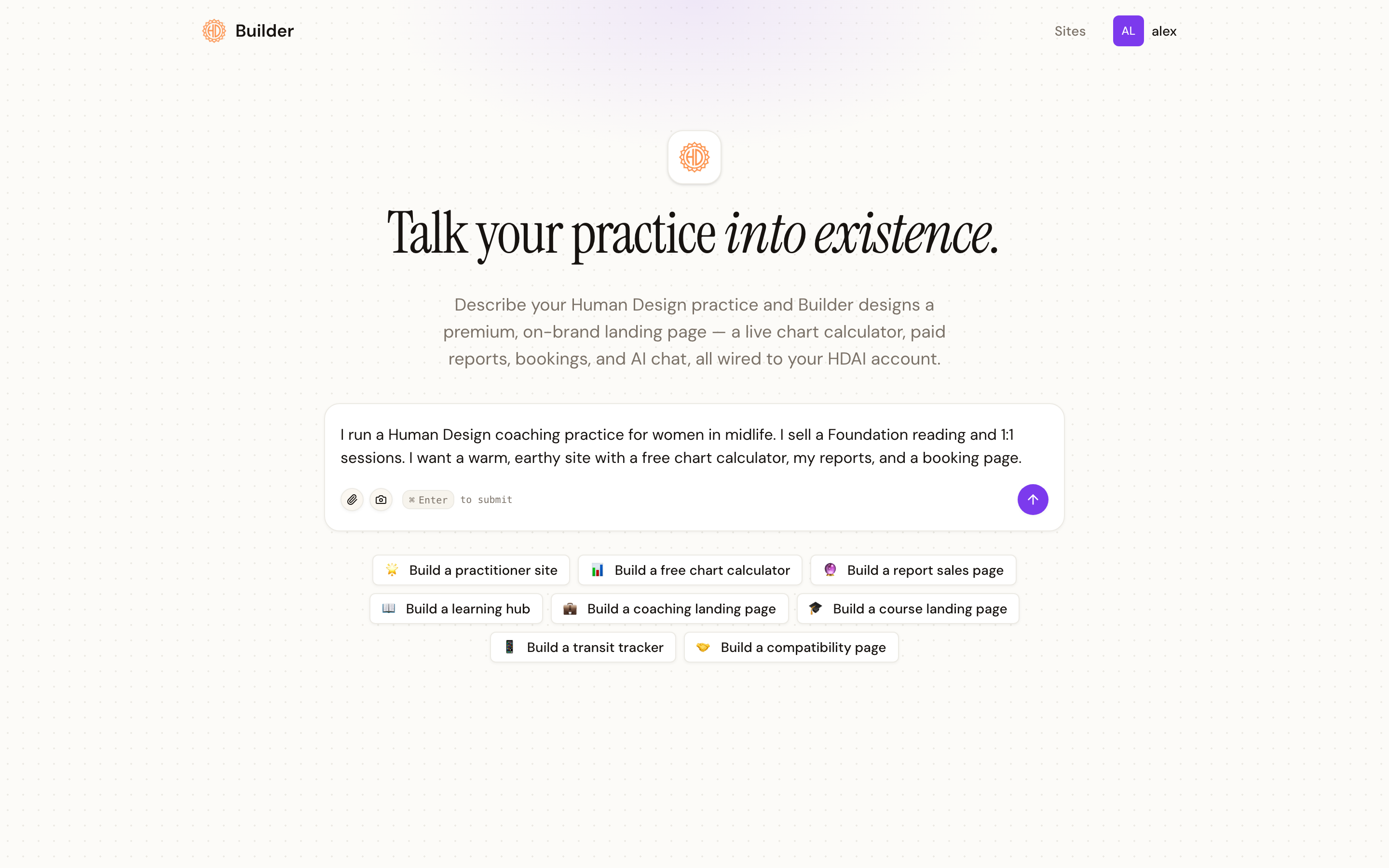
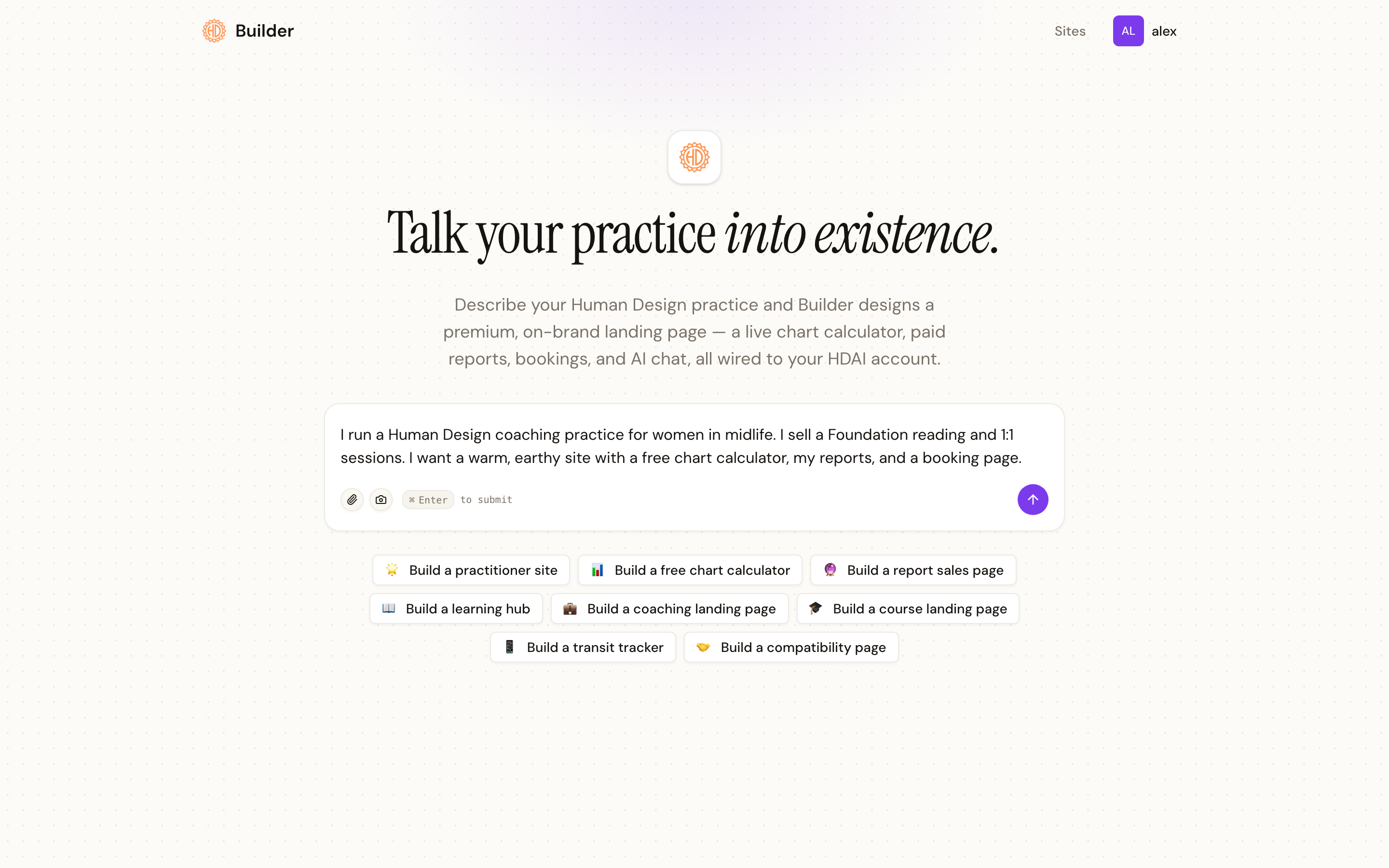
Refine your prompt. Add the details that make the site yours: the readings you sell and their prices, whether you take bookings, the pages you want, and the mood of the design. Here is an example for a midlife coaching practice.
-
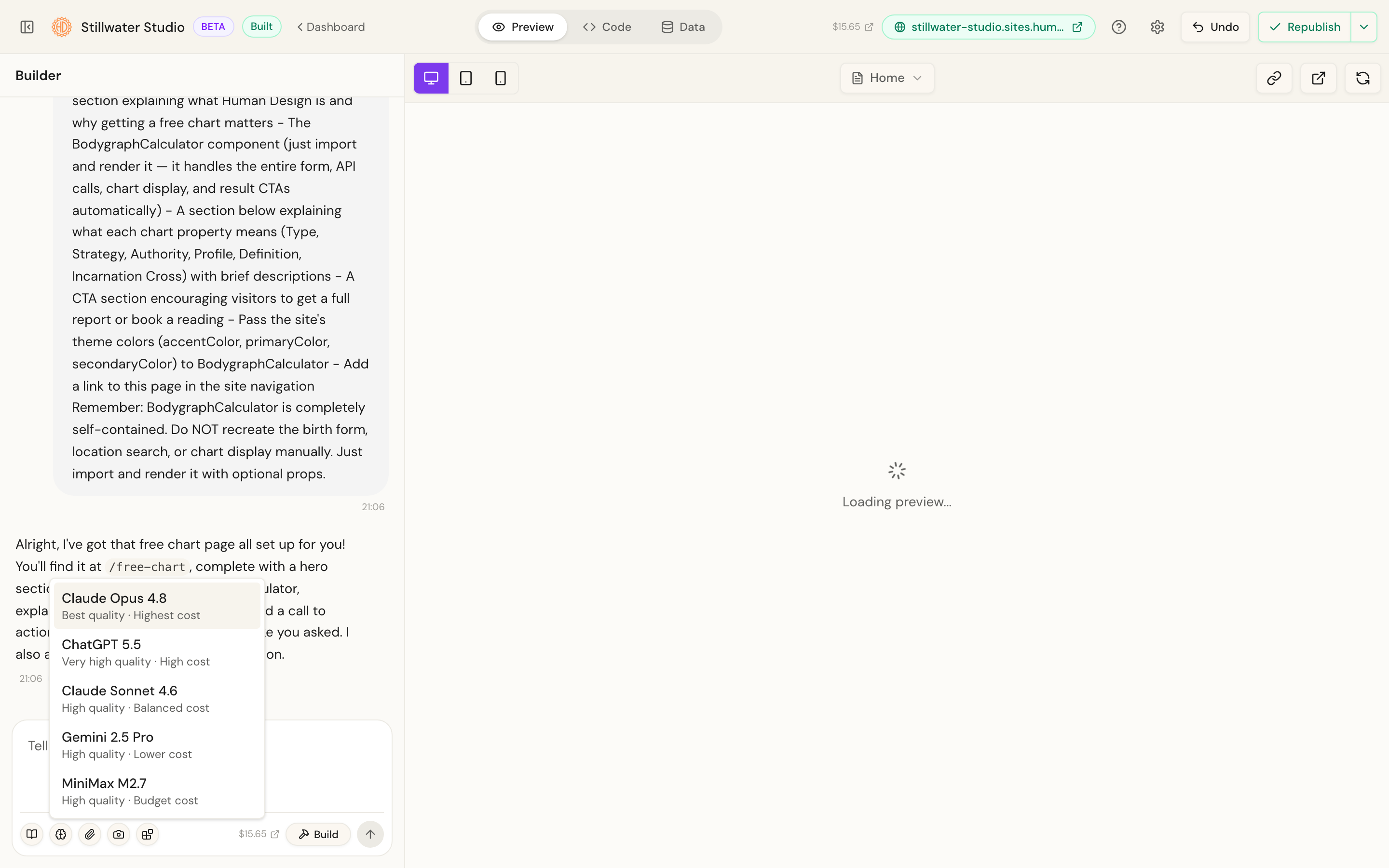
Choose your AI model (optional). The small brain icon in the composer lets you pick which model builds your site. Claude Opus is the default and gives the best quality. Lower-cost models build faster and cheaper if you are iterating quickly.
-
Submit. Press the arrow button or use Command and Enter. The Builder opens your new project and starts planning. From here you review the plan and approve it to build your first draft, which is covered in the next tutorial.
Tips
- You can attach reference images or capture a screenshot with the paperclip and camera buttons, so the Builder matches a look you already have in mind.
- If you have saved a brand voice in HDAI Pro, the palette button lets you apply it before you build, so the first draft is already on-brand.
- Creating a project spends balance. The Builder never auto-submits a prompt for you.
Related
- Review and approve your plan, then build your first draft.
- Your project workspace: a guided tour.